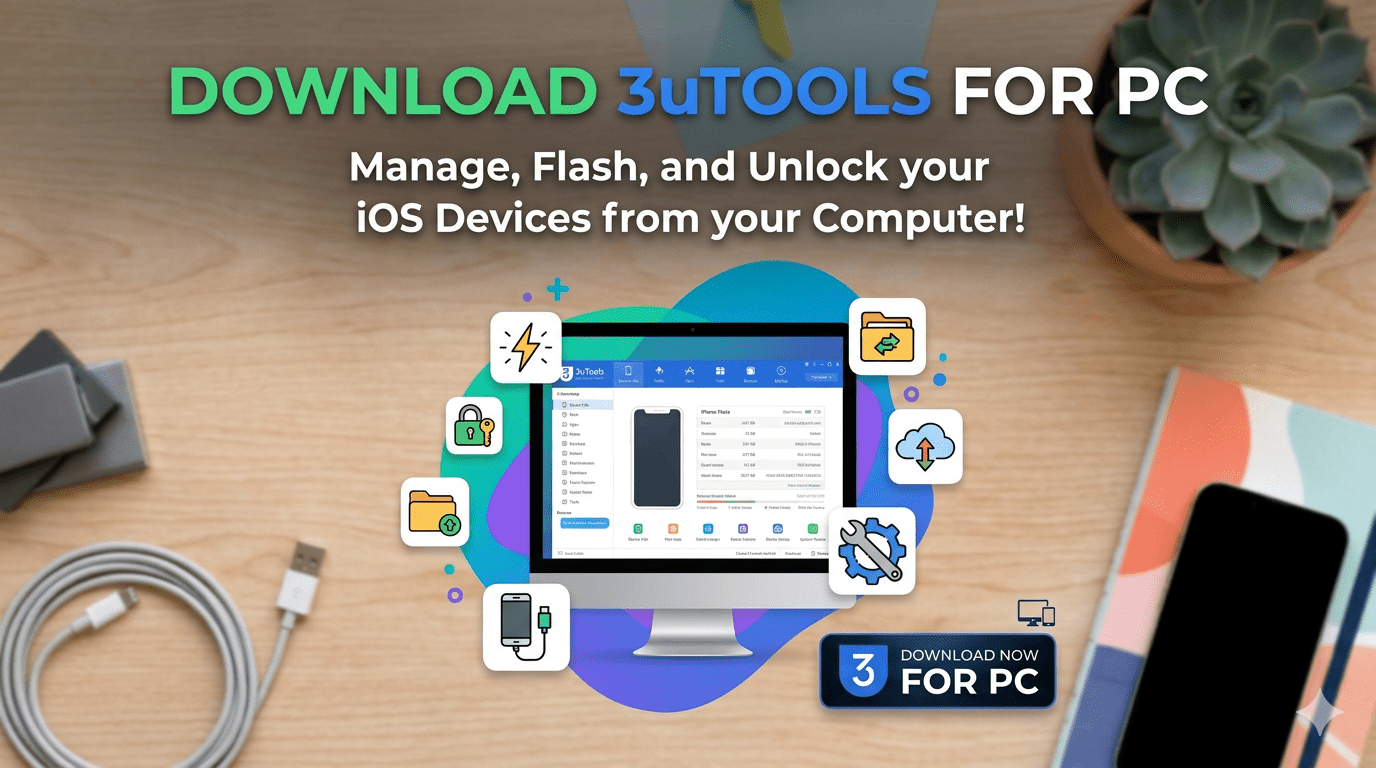
If you manage an iPhone or iPad from a Windows PC or Mac, you have likely run into the limitations of Apple’s default tools at some point. iTunes crashes during restore operations, device recognition fails after Windows updates, and backups complete inconsistently or not at all. These are not rare edge cases. They are common enough that millions of users search for alternatives every month.
3uTools is one of the most widely used alternatives, offering a single application that handles file management, backups, hardware diagnostics, firmware updates, and device customization. This guide covers how to download and install it on both Windows and Mac, how to connect your device, and what to do when things do not go as expected.
Why Users Look for Alternatives to iTunes
iTunes was originally designed as a media player and store. Its device management features were added later and have always been secondary to that core purpose. On Windows especially, it has historically struggled with driver conflicts, slow performance, and crashes during operations that should be reliable.
Common problems that lead users to look for alternatives include backups that fail partway through without a clear error message, devices that are not recognized after Windows or macOS updates, file transfers that require syncing the entire device rather than moving individual files, and limited visibility into what is actually stored on the device or how the hardware is performing.
3uTools addresses each of these with its own driver stack, direct file access, and a diagnostics dashboard that surfaces information Apple does not provide through its own tools.
Downloading and Installing on Windows
The current Windows version is v3.26.007, available in a 64-bit version (187 MB) and a 32-bit version (192 MB). The 64-bit version is recommended for most modern computers. Both include everything needed for device management without requiring iTunes to be installed separately.
Installation steps:
- Download 3uTools from the official website and select the appropriate version for your system
- Run the installer with administrator privileges and follow the on-screen steps
- Accept the default settings and allow the driver package to install completely
- Restart your computer after installation to ensure all drivers load correctly
- Connect your iPhone using a genuine Apple USB cable to a rear USB port
- Tap Trust This Computer on your iPhone when prompted
- 3uTools will recognize the device within a few seconds and display the main dashboard
If your device is not recognized, use the Repair Driver button within the application. This automatically scans for driver conflicts and resolves the most common recognition issues without requiring manual driver updates or iTunes reinstallation.
For Windows 10 and Windows 11 users, we have separate detailed guides covering version-specific setup steps and known compatibility considerations.
Downloading and Installing on Mac
The current Mac version is v3.16.006 (178 MB), compatible with macOS 12 and later on both Intel and Apple Silicon machines. The Mac version has a slightly reduced feature set compared to Windows due to macOS security restrictions, but covers all standard device management functions including file transfer, backup, diagnostics, and firmware updates.
Installation steps:
- Download the macOS installer from the official website
- When macOS displays a Gatekeeper warning, do not double-click the installer. Right-click it and select Open instead
- If a warning persists after installation, go to System Settings, then Privacy and Security, and click Open Anyway
- Grant the permissions macOS requests for USB access and file system access
- Connect your iPhone via USB cable and tap Trust This Computer on the device
- 3uTools will load the device dashboard within a few seconds
Setup on Mac typically takes slightly longer than on Windows due to the individual permission prompts, but the process is straightforward once you know to use right-click rather than double-clicking the installer.
For a full walkthrough of Mac-specific setup and features, see our dedicated 3uTools Mac download guide.
What 3uTools Shows You Once Connected
The main dashboard provides device information that is not available through Finder, iTunes, or iOS settings. This includes battery cycle count and health status, storage breakdown by content category, CPU activity, screen and camera component status, activation status, and iCloud lock status.
This level of detail is particularly useful for users who have purchased refurbished devices and want to verify hardware condition, or for anyone trying to understand why a device is performing below expectations.
Key Features
Direct File Management
3uTools provides direct access to the file structure of a connected device, allowing files to be moved in either direction without syncing. This is faster and more flexible than iTunes or Finder for users who regularly transfer photos, videos, documents, or other content between their device and computer.
Selective Backup and Restore
Rather than backing up the entire device, 3uTools allows users to select specific data types including messages, contacts, photos, and app data. The Social App Backup feature handles WhatsApp conversations and other messaging data independently, which is useful for preserving chat history without running a full backup. Restoring specific data types is equally targeted.
System Optimization
The Garbage Cleaner tool removes cached data, junk files, and residual data from deleted applications. On older iPhones this can improve responsiveness and free up meaningful storage. On newer devices it helps maintain consistent performance over time.
Firmware Management
3uTools includes a firmware library and flashing tools that allow users to update or restore iOS firmware directly. Easy Flash automates the process for straightforward updates. Pro Flash gives more experienced users greater control over the details. This is particularly useful when a standard iTunes restore fails or a device needs to be returned to a clean firmware state.
Device Customization
3uTools includes a built-in library of ringtones and wallpapers, and allows users to create custom ringtones from audio files on their computer. Home screen layout can be managed from the desktop interface, which is more practical than rearranging apps on the phone screen directly.
Real-Time Screen Viewing
The screen mirroring feature displays the iPhone screen on the connected computer in real time, useful for troubleshooting, presentations, or managing the device from a larger screen.
Advanced Diagnostic Tools
Beyond the initial hardware overview, 3uTools provides real-time monitoring of CPU activity, battery draw by app, and storage changes during active use. This helps identify specific apps or processes causing performance issues rather than requiring a factory reset to resolve them.
Troubleshooting Common Issues
Device not recognized: Use a genuine Apple USB cable connected to a rear port, then click Repair Driver. If the issue persists, restart both the iPhone and the computer, launch 3uTools first, then connect the device.
Installation fails on Windows: Run the installer as administrator and confirm there is at least 500 MB of free disk space beyond the download size. Temporarily pause antivirus scanning if it is blocking the installation file.
Gatekeeper blocks on Mac: Use right-click and Open rather than double-clicking. If the block persists, go to System Settings, Privacy and Security, and select Open Anyway. Enter your Mac password when prompted.
Slow performance after installation: Close iTunes, the Apple Devices app, or any other iOS management software before launching 3uTools to prevent resource conflicts.
How 3uTools Compares to Alternatives
iTunes and Apple’s current tools are free but have well-documented reliability issues, particularly on Windows. Third-party alternatives like iMazing and AnyTrans offer solid functionality but charge annual subscription fees in the range of $30 to $60 for access to features that 3uTools provides at no cost.
3uTools is free for personal use, regularly updated for new iOS versions, and handles a broader range of device management tasks than most single-purpose alternatives. Professional repair technicians often use it as their primary iOS management tool because of its diagnostic depth and firmware management capabilities.
Conclusion
3uTools provides a practical solution for iOS users who need more reliable and comprehensive device management than Apple’s native tools offer. Its combination of direct file access, selective backup, hardware diagnostics, firmware management, and system optimization makes it useful across a range of scenarios, from everyday file transfers to recovering a device that iTunes cannot recognize.
It is free, actively maintained, and available for both Windows and Mac. For users who have found iTunes or Finder insufficient for their needs, it is worth downloading and trying.
Frequently Asked Questions
Is 3uTools safe to download and use?
Yes. 3uTools is legitimate software actively maintained and used by a large number of iOS device owners and repair professionals. Always download from the official website to avoid modified versions. Data during standard operations remains local to your computer and does not pass through external servers.
What is the difference between the Windows and Mac versions?
The Windows version (v3.26.007) includes a broader feature set, particularly for advanced firmware operations. The Mac version (v3.16.006) covers all standard device management functions but has some limitations due to macOS security policies. Both versions are significantly more capable than Apple’s current tools for everyday device management tasks.
Will using 3uTools affect my iPhone warranty?
Standard operations such as file transfers, backups, diagnostics, and firmware updates through 3uTools are normal device management activities and do not affect warranty status. Review Apple’s warranty terms before performing any advanced system-level modifications.
Can 3uTools recover a device that iTunes cannot recognize?
In many cases, yes. 3uTools can often restore devices stuck in recovery mode, boot loops, or unresponsive states that iTunes fails to handle. This applies to software-related issues. Physical hardware damage such as a failed logic board or water damage cannot be addressed by any software tool.
How often is 3uTools updated?
The development team releases updates regularly to maintain compatibility with new iOS versions and device models. The software includes a built-in update checker that notifies you when a new version is available. Updates install automatically while preserving existing settings.
Does 3uTools require iTunes to be installed?
On Windows, 3uTools manages its own driver stack and does not require iTunes for most functions. On Mac, granting the necessary permissions during setup is sufficient for standard device management.
Which devices and operating systems are supported?
3uTools supports iPhones, iPads, and iPods running iOS 12 or later. The Windows version runs on Windows 7, 8, 10, and 11 in both 32-bit and 64-bit configurations. The Mac version requires macOS 12 or later and supports both Intel and Apple Silicon processors.