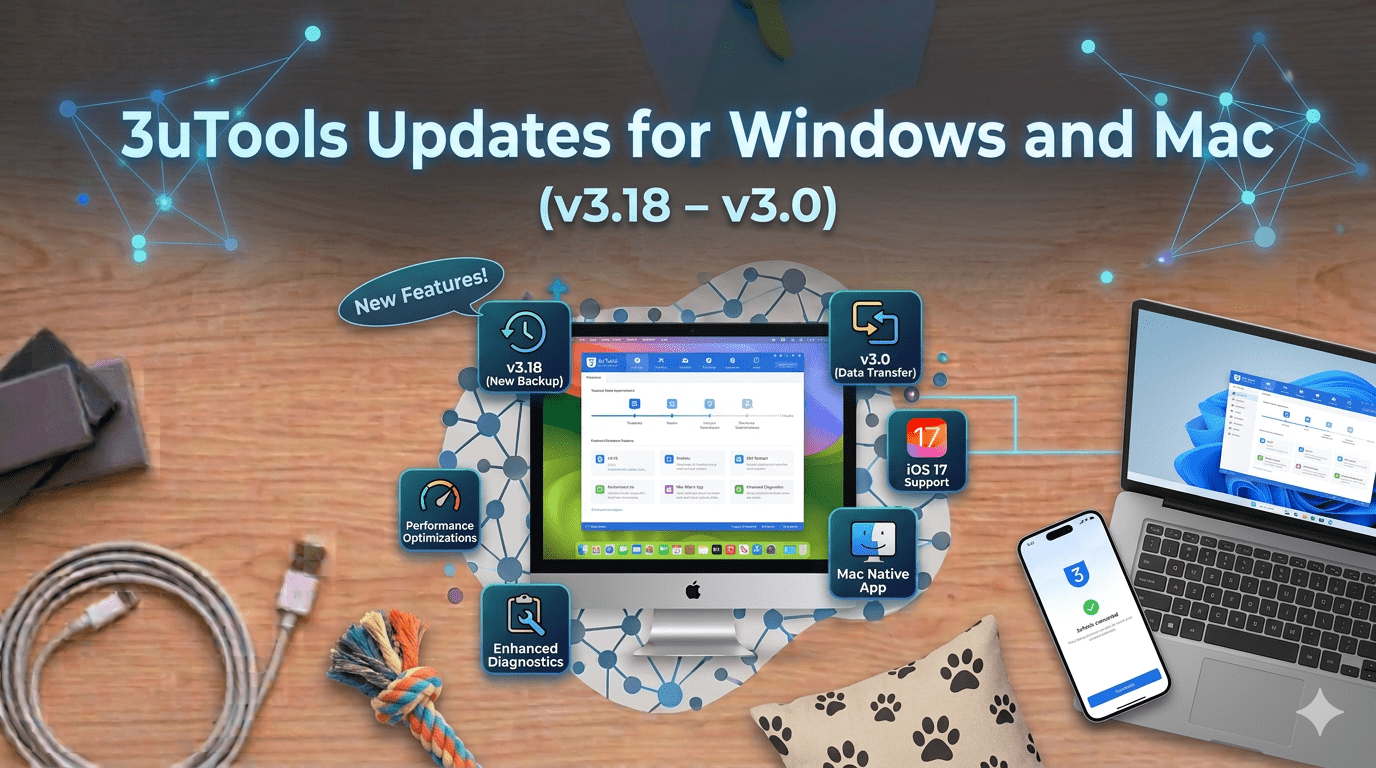
If you rely on 3uTools to manage your iPhone or iPad, there is good news. The development team has released fresh updates for both Windows and macOS, and these go well beyond routine maintenance. Both versions bring meaningful improvements that make device management smoother, faster, and more compatible with Apple’s latest hardware.
Whether you are running Windows 7, 8, 10, or 11, or macOS 12 and above, the latest versions have something worthwhile for you. If you recently upgraded to the iPhone 16 series, these updates are particularly relevant since 3uTools now fully supports the new devices.
What Makes These Updates Significant
The development team behind 3uTools has been focused on two clear goals with these releases: ensuring compatibility with the newest Apple devices and resolving stability issues that users had reported. Both goals have been addressed in these updates.
Apple regularly introduces new hardware and iOS versions, and third-party management tools need to keep pace. These updates represent a deliberate effort to ensure that 3uTools remains a reliable and current solution for iOS device management in 2025.
Update Details and Technical Specifications
For Windows Users: Version 3.18
The Windows version has been updated to version 3.18, released on October 11, 2024. The installer file size is 193 MB and supports Windows 7, 8, 10, and 11. The software is completely free with no license fees or subscription costs.
For Mac Users: Version 3.09.002
The macOS version has been updated to version 3.09.002, released on September 28, 2024. The installation package is 201.60 MB and requires macOS 12 or above. Like the Windows version, it is completely free to download and use.
Both versions support English as the interface language and are available from the official 3uTools website.
What Is New in These Updates
Full Support for iPhone 16 Series
The headline improvement in both updates is complete support for the iPhone 16 series. This covers all models including the standard iPhone 16, iPhone 16 Plus, iPhone 16 Pro, and iPhone 16 Pro Max.
In practical terms this means that connecting any iPhone 16 model to your computer will allow 3uTools to recognize the device immediately and give you full access to all management features. You can view detailed device information, check battery health, manage files, create backups, and use every other function that makes 3uTools useful. There is no waiting period or reduced functionality while the software catches up with the new hardware.
Bug Fixes and Stability Improvements
Beyond new device support, both updates address stability and performance issues that some users had reported. These included occasional crashes when performing specific tasks, slower loading times for certain device information screens, and minor issues during large file transfers.
The development team identified the underlying causes of these problems and implemented targeted fixes. The result is a more responsive and reliable experience across all supported devices and operating systems. Operations that previously felt sluggish should now complete noticeably faster.
How These Updates Affect Your Workflow
For iPhone 16 Owners
If you have recently upgraded to any model in the iPhone 16 series, installing this update is necessary for 3uTools to function correctly with your device. Without the update, the software may not recognize the device properly or may display incomplete information. With the update installed, your existing device management routine continues without interruption.
For Users Who Experienced Stability Issues
If you were affected by any of the bugs addressed in these updates, the improvement will be immediately noticeable. Crashes and performance slowdowns that were present in earlier versions should no longer occur.
For All Other Users
Even if you do not have an iPhone 16 and did not experience any of the specific bugs that were fixed, updating is still advisable. Keeping the software current ensures compatibility with future iOS updates from Apple and contributes to overall stability. Staying on the latest version means you are prepared for upcoming changes rather than having to troubleshoot compatibility issues later.
How to Update on Windows
Step 1: Visit the Official Download Page
Go to the official 3uTools website and navigate to the Windows download section. Confirm that version 3.18 is listed as the current release before downloading.
Step 2: Download the Installer
Click the download button and save the 193 MB installer file to your computer. There is no need to uninstall your current version beforehand. The new installer handles the upgrade automatically.
Step 3: Run the Installer
Locate the downloaded file in your Downloads folder and double-click it to begin installation. If Windows displays a security prompt asking for permission to proceed, click Yes to continue.
Step 4: Follow the Installation Wizard
Click through the installation steps, accepting the default settings. The installer detects your existing 3uTools installation and upgrades it while preserving your current settings, preferences, and configurations.
Step 5: Verify the Update
Once installation is complete, open 3uTools and check the About section to confirm you are running version 3.18. Reconnect your iPhone or iPad to verify that device detection and all features are working correctly. The entire process typically takes under five minutes.
How to Update on macOS
Step 1: Go to the Mac Download Page
Visit the official 3uTools website and navigate to the macOS download section. Confirm that version 3.09.002 is the current release.
Step 2: Download the Package
Click the download button to retrieve the 201.60 MB installation package.
Step 3: Open the Downloaded File
Once the download finishes, open your Downloads folder and double-click the installation package. If macOS displays a message about opening a file downloaded from the internet, this is standard security behavior and you can proceed normally.
Step 4: Install the Update
Drag the 3uTools icon into your Applications folder. If a previous version is already installed, macOS will ask whether you want to replace it. Click Replace to complete the update.
Step 5: Confirm the Installation
Open 3uTools from your Applications folder and verify that the About screen shows version 3.09.002. Connect your iOS device to confirm everything is working as expected.
Why 3uTools Remains a Valuable Tool in 2025
Comprehensive Device Management
3uTools provides a broad set of device management capabilities in a single interface. You can view detailed hardware and software information, monitor battery health over time, manage storage, organize photos and videos, install and remove apps, create full backups, restore previous backups, and perform firmware flashing operations. Having all of these functions in one place simplifies the management of iPhone and iPad devices considerably compared to using multiple separate tools.
Efficient App Management
3uTools includes an app library and management interface that allows you to install, update, back up, and remove apps from your connected device through your computer. This is particularly useful when setting up a new device, managing multiple iPhones or iPads, or handling bulk app updates without navigating through the App Store on the device itself.
No Cost to Use
3uTools is completely free. There are no subscription tiers, no premium features locked behind a paywall, and no advertisements interrupting your workflow. All functionality is available to every user at no charge, which makes it an accessible option regardless of budget.
Ongoing Development and Support
These updates demonstrate that the development team is actively maintaining the software and responding to user feedback. The consistent release of updates aligned with Apple’s hardware and software cycles means that 3uTools is a tool you can invest time in learning with confidence that it will remain relevant and functional as Apple’s ecosystem continues to evolve.
Troubleshooting Common Update Issues
Installation Will Not Start
If the installer fails to launch, the downloaded file may have been corrupted during the download process. Delete the file, download a fresh copy from the official website, and try again.
Cannot Verify Developer on Mac
Some Mac users may see a security message indicating that the developer cannot be verified. This is a standard macOS security feature. Go to System Settings, then Privacy and Security, where you will find an option to open the application anyway. Selecting that option will allow the installation to proceed.
Existing Version Does Not Upgrade
If the installer does not detect your current installation, manually uninstall the existing version first. This will not affect your device data or saved settings. After removing the old version and restarting your computer, install the new version fresh.
Device Not Recognized After Update
If your iPhone or iPad is not being detected after updating, try the following steps in order: disconnect and reconnect the USB cable, restart your iOS device, restart your computer, try a different USB port, and try a different USB cable. In most cases one of these steps resolves the issue.
Looking Ahead
The consistent update pattern from the 3uTools team suggests that future releases will continue to follow Apple’s hardware and software announcements. As new iPhone models and iOS versions arrive, you can expect corresponding updates to maintain compatibility and address any issues that emerge. The team’s responsiveness to user feedback has been a defining characteristic of how the software has developed over time.
Conclusion
These updates bring two concrete benefits: full support for the iPhone 16 series and fixes for stability issues that affected some users. If you have an iPhone 16, updating is necessary for the software to work properly with your device. If you experienced crashes or performance issues, the fixes in these versions will make a noticeable difference. And for everyone else, staying current is always a sensible practice.
Updating takes less than five minutes from download to completion, and the process preserves all your existing settings. Head to the official 3uTools website, download the version for your operating system, and run the installer. It is a straightforward upgrade with clear practical benefits.
FAQs
1. Do I need to uninstall my old version before updating?
No. The new installer automatically upgrades your existing installation while preserving all your settings and preferences.
2. Will updating delete my data or settings?
No. The update process is designed to keep everything intact. Your preferences, custom configurations, and saved data will remain unchanged.
3. How long does the update take?
Most users complete the entire process in under five minutes. Actual time depends on your internet speed for the download and your computer’s performance during installation.
4. Is the update free?
Yes, completely free. There are no charges, subscription fees, or hidden costs of any kind.
5. Should I update even if I do not have an iPhone 16?
Yes. The bug fixes and performance improvements in these updates benefit all users regardless of which iPhone or iPad model they own. Staying current also ensures compatibility with future iOS updates.
6. Can I keep using my device while updating?
It is best to disconnect your iPhone or iPad during the installation process. You can reconnect it once the update is complete and verified.