
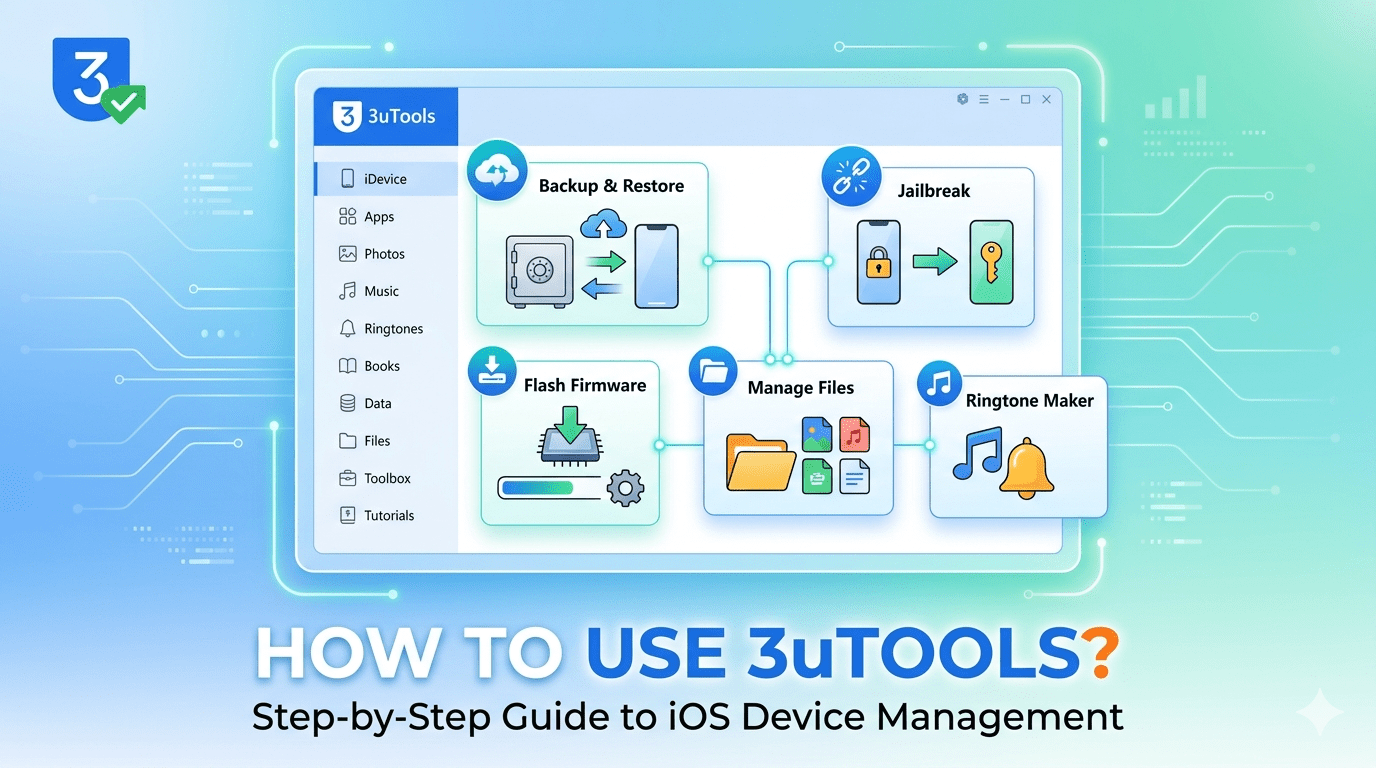
Managing an iPhone from a Windows computer isn’t always straightforward. While Apple’s ecosystem works well for many users, tasks like transferring photos, creating local backups, checking battery health, or restoring files can sometimes feel more complicated than they should.
That’s where 3uTools comes in.
3uTools is a free iOS management utility that allows you to manage photos, videos, music, apps, backups, and device information from a single dashboard.
Whether you’re moving files to a new iPhone, creating a backup before an iOS update, or simply trying to free up storage space, 3uTools gives you more control over your device than many users realize.
In this guide, you’ll learn exactly how to use 3uTools step by step, even if you’ve never opened the software before.
Table of Contents
What Is 3uTools?
3uTools is an all-in-one management tool designed for iPhones, iPads, and iPods. It runs on Windows and provides a centralized place to manage files, perform backups, transfer data, view device information, and access advanced maintenance tools.
What Can You Do With 3uTools?
Some of the most useful features include:
- Transfer photos between iPhone and PC
- Back up and restore device data
- Check battery health and device information
- Manage music, videos, and documents
- Transfer data to a new iPhone
- Update or restore iOS firmware
- Monitor storage usage
For most users, the backup and file management tools are the features they’ll use most often.
Who Should Use 3uTools?
3uTools is particularly useful if you:
- Regularly transfer files between your iPhone and computer
- Want a local backup instead of relying entirely on iCloud
- Need detailed information about your device
- Prefer managing media files manually
If you only sync data through iCloud and rarely connect your phone to a PC, you may not need all of its features.
Before You Start Using 3uTools
Before launching the software, there are a few things worth checking.
Install the Required Drivers
One of the most common reasons 3uTools fails to detect an iPhone is missing Apple drivers. Installing the latest iTunes package usually resolves this issue because it includes the necessary device drivers.
Use a Reliable USB Cable
Many connection problems aren’t software-related at all. If your iPhone connects and disconnects repeatedly, try:
- An original Apple cable
- A certified Lightning cable
- A different USB port
This simple step solves a surprising number of detection issues.
Back Up Important Data First
Before performing firmware updates, restores, or other major changes, create a backup. Even when everything goes according to plan, having a backup provides peace of mind.
How to Connect Your iPhone to 3uTools?
Connecting your device is straightforward.
Step 1: Launch 3uTools
Open the software on your Windows PC.
Step 2: Connect Your Device
Use a USB cable to connect your iPhone or iPad.
Step 3: Tap “Trust This Computer”
If this is your first connection, you’ll see a prompt on your iPhone.
Tap:
Trust → Enter Passcode
Without this permission, the software won’t be able to communicate with your device.
Step 4: Verify Device Recognition
Once connected, you’ll see information such as:
- Device model
- iOS version
- Battery details
- Storage information
- Activation status
If these details appear, your connection is working correctly.
How to Transfer Photos Between iPhone and Computer Using 3uTools?
Photo transfer is one of the most popular reasons people install 3uTools.
Export Photos From iPhone to PC
- Open the Photos section.
- Select the images you want to save.
- Click Export.
- Choose a destination folder.
This is especially useful before freeing storage space on your phone.
Import Photos From PC to iPhone
- Open Photos.
- Click Import.
- Select your image files.
- Wait for the transfer to complete.
If imported photos don’t appear immediately, disconnect and reconnect your device.
How to Back Up Your iPhone With 3uTools?
Creating regular backups is one of the smartest habits any iPhone owner can develop.
Create a Full Backup
- Open Toolbox.
- Select Backup/Restore.
- Choose Full Backup.
- Select a storage location.
- Click Back Up Now.
The process may take several minutes depending on device storage and connection speed. (3u.com)
Why Backups Matter
Many users only think about backups after something goes wrong. A backup can save hours of frustration if:
- An update fails
- Your phone is lost
- A restore becomes necessary
- Important files are accidentally deleted
How to Transfer Music and Videos Using 3uTools?
Many iPhone users discover that transferring music and videos through traditional Apple software isn’t as flexible as they expected. 3uTools simplifies the process by giving you direct control over your media files.
Import Music to iPhone
To add music from your computer:
- Connect your iPhone to 3uTools.
- Click Music from the left-hand menu.
- Select Import.
- Choose the audio files you want to add.
- Wait for the transfer process to finish.
After the transfer completes, open the Music app on your iPhone to verify that the files were added successfully.
Tip: If songs don’t appear immediately, restart the Music app or reconnect your device.
Export Music to Computer
If you want to save music files from your iPhone to your PC:
- Open the Music section.
- Select the songs you want to export.
- Click Export.
- Choose a destination folder.
This can be useful when moving media to a new computer or creating an additional backup.
Manage Videos and Media Files
The process for videos is similar:
- Navigate to the Videos section.
- Import or export files as needed.
- Wait for synchronization to complete before disconnecting your device.
Large video files may take longer to transfer, especially over older USB connections.
How to Restore an iPhone Backup in 3uTools?
A backup is only valuable if you can restore it when needed. Fortunately, 3uTools makes the restoration process relatively straightforward.
Restore a Full Backup
To restore all data from a previous backup:
- Open Toolbox.
- Select Backup/Restore.
- Click Restore Backup.
- Choose the backup file.
- Start the restoration process.
Avoid disconnecting your device until the process is completely finished.
Restore Specific Files Only
In some situations, you may not want to restore everything.
For example:
- You only need photos.
- You accidentally deleted contacts.
- You want to recover certain documents.
Depending on the backup type, 3uTools may allow selective restoration, helping you recover specific content without replacing your entire device.
What to Do If Restore Fails
Restore errors are often caused by:
- Outdated device drivers
- Corrupted backup files
- Unstable USB connections
- Insufficient storage space
Before trying again:
- Restart your computer.
- Use a different USB port.
- Verify that the backup file is intact.
- Update 3uTools to the latest version.
How to Transfer Data to a New iPhone Using 3uTools?
Upgrading to a new iPhone can be exciting until you realize you have years of photos, contacts, and files to move.
3uTools can simplify the migration process.
Device-to-Device Transfer
The typical workflow involves:
- Creating a backup from your old iPhone.
- Connecting your new iPhone.
- Restoring the backup to the new device.
This method transfers most personal data while preserving important information.
Moving Photos, Contacts, and Messages
Users are often most concerned about losing:
- Family photos
- Contact information
- Text conversations
Before erasing or trading in an old device, verify that these items appear correctly on the new iPhone.
Things to Check Before Starting
Before transferring data:
- Update both devices to compatible iOS versions.
- Ensure sufficient battery charge.
- Verify available storage space.
- Create an additional backup if possible.
A few minutes of preparation can prevent hours of troubleshooting later.
How to Check iPhone Health and Device Information?
One feature that sets 3uTools apart from many alternatives is the amount of information it provides about your device.
Battery Health
Battery performance naturally declines over time.
Within the device dashboard, you can view information such as:
- Battery health percentage
- Charge cycles
- Battery status
This information can help determine whether battery replacement may be necessary.
Activation Status
3uTools can display important activation details, including:
- Device activation status
- Warranty information (when available)
- Device model details
This can be particularly useful when purchasing a used iPhone.
Storage Usage
Running out of storage is one of the most common iPhone complaints.
The storage section helps identify:
- Apps using the most space
- Large media files
- Available storage capacity
Reviewing this information periodically can help keep your device running smoothly.
Device Verification Information
For second-hand devices, checking hardware information can help confirm that the phone matches its reported specifications.
This extra transparency is one reason many technicians and repair professionals use 3uTools.
How to Update or Flash iOS Using 3uTools?
One of the most powerful features in 3uTools is iOS flashing.
However, it’s also one of the areas where users should proceed carefully.
What Flashing Means
Flashing refers to installing or reinstalling iOS firmware on an iPhone.
People commonly flash devices when:
- iOS becomes corrupted
- The device is stuck during startup
- They need a clean installation
- Troubleshooting persistent software issues
Easy Flash Mode
For beginners, Easy Flash is usually the safest option.
The software guides you through:
- Selecting compatible firmware.
- Downloading the firmware package.
- Installing iOS on the device.
Follow all on-screen instructions carefully.
Retain User Data Option
Some firmware operations offer a Retain User Data option.
While convenient, no method is completely risk-free.
Important files should always be backed up before proceeding.
Important Risks to Understand
Before flashing an iPhone:
- Create a complete backup.
- Ensure your battery is sufficiently charged.
- Use a stable USB connection.
- Avoid interrupting the process.
Unexpected interruptions can lead to restoration errors and additional troubleshooting.
Common 3uTools Problems and How to Fix Them
Even reliable software occasionally encounters issues. Here are solutions to some of the most common problems users experience.
Device Not Detected
Possible causes include:
- Faulty USB cable
- Missing Apple drivers
- Locked iPhone
- USB port issues
Try:
- Unlocking the device.
- Tapping Trust This Computer.
- Reinstalling Apple drivers.
- Using another USB port.
Stuck on Connecting
If 3uTools remains stuck on the connection screen:
- Restart the software.
- Restart your iPhone.
- Disconnect other USB devices.
- Update the software.
Many connection issues are resolved after a simple restart.
Driver Installation Issues
Apple Mobile Device drivers are essential for communication between your PC and iPhone.
If drivers appear corrupted:
- Uninstall iTunes and related Apple components.
- Reinstall the latest version.
- Restart your computer.
Backup Failed Error
Backup failures may occur because of:
- Low disk space
- Interrupted connections
- Corrupted data
Check available storage and attempt the backup again.
Flashing Failed Error
Common causes include:
- Incompatible firmware
- Connection interruptions
- Security software interference
Verify firmware compatibility and temporarily disable software that may interfere with the flashing process.
Is 3uTools Safe to Use?
Safety is one of the most frequently asked questions about 3uTools.
Security Considerations
For standard tasks such as:
- Photo transfers
- Backups
- File management
- Device information checks
3uTools is widely used by iPhone owners and repair technicians.
However, users should understand exactly what a tool is doing before making significant system changes.
Downloading From Official Sources
Always download software from official or trusted sources. Avoid modified versions distributed through unknown websites, as they may contain security risks.
Features Beginners Should Avoid
If you’re new to 3uTools, avoid experimenting with advanced functions until you understand them.
Examples include:
- Firmware flashing
- Advanced system modifications
For routine management tasks, most users never need these features.
Best Tips for New 3uTools Users
Always Back Up Before Major Changes
This is arguably the most important habit. Whether you’re updating iOS, restoring a device, or transferring data, a recent backup can prevent data loss.
Use Original USB Cables
Cheap or damaged cables often cause:
- Failed transfers
- Connection interruptions
- Backup errors
Using a reliable cable eliminates many common issues.
Keep Drivers Updated
Updated Apple drivers improve compatibility and reduce connection problems.
If something suddenly stops working, checking for driver updates is a good first step.
Avoid Unnecessary Flashing
Many issues can be solved without reinstalling iOS.
Only consider flashing when simpler troubleshooting methods have failed.
Final Thoughts
3uTools has become a popular choice among iPhone users because it brings several useful management tools into a single interface. Whether you need to transfer photos, create backups, monitor battery health, or move data to a new device, it can simplify tasks that often feel cumbersome through traditional methods.
For beginners, the best approach is to start with basic features such as file transfers and backups. These tools provide immediate value while helping you become familiar with the software. As your confidence grows, you can explore more advanced options when necessary.
Most importantly, remember that any operation involving backups, restores, or firmware changes should begin with protecting your data. A few minutes spent creating a backup can save hours of frustration later.
By understanding how each feature works and when to use it, you’ll be able to get the most out of 3uTools while keeping your iPhone data safe and organized.
Frequently Asked Questions
Is 3uTools Free?
Yes. Most of the core features, including file management, backups, device information, and media transfers, are available at no cost.
Can I Use 3uTools Without iTunes?
While you don’t need to actively use iTunes, Apple drivers are typically required for proper device communication.
Does 3uTools Work on Mac?
3uTools is primarily designed for Windows computers. Mac users may need alternative iOS management tools.
Can 3uTools Recover Deleted Files?
Recovery capabilities depend on whether the data still exists in a backup. Once data has been permanently removed and overwritten, recovery may not be possible.
Will 3uTools Erase My Data?
Routine tasks such as file transfers and backups generally do not erase data. However, certain restore or flashing operations can remove information from the device.
Always read the instructions carefully before proceeding.
Why Is 3uTools Not Detecting My iPhone?
The most common reasons include:
- Missing Apple drivers
- Faulty USB cables
- Locked devices
- Outdated software
Checking these areas usually resolves the issue.
Is 3uTools Better Than iTunes?
The answer depends on your needs.
Many users prefer 3uTools for file management, battery information, and backup flexibility, while others prefer Apple’s native tools for official device management.