
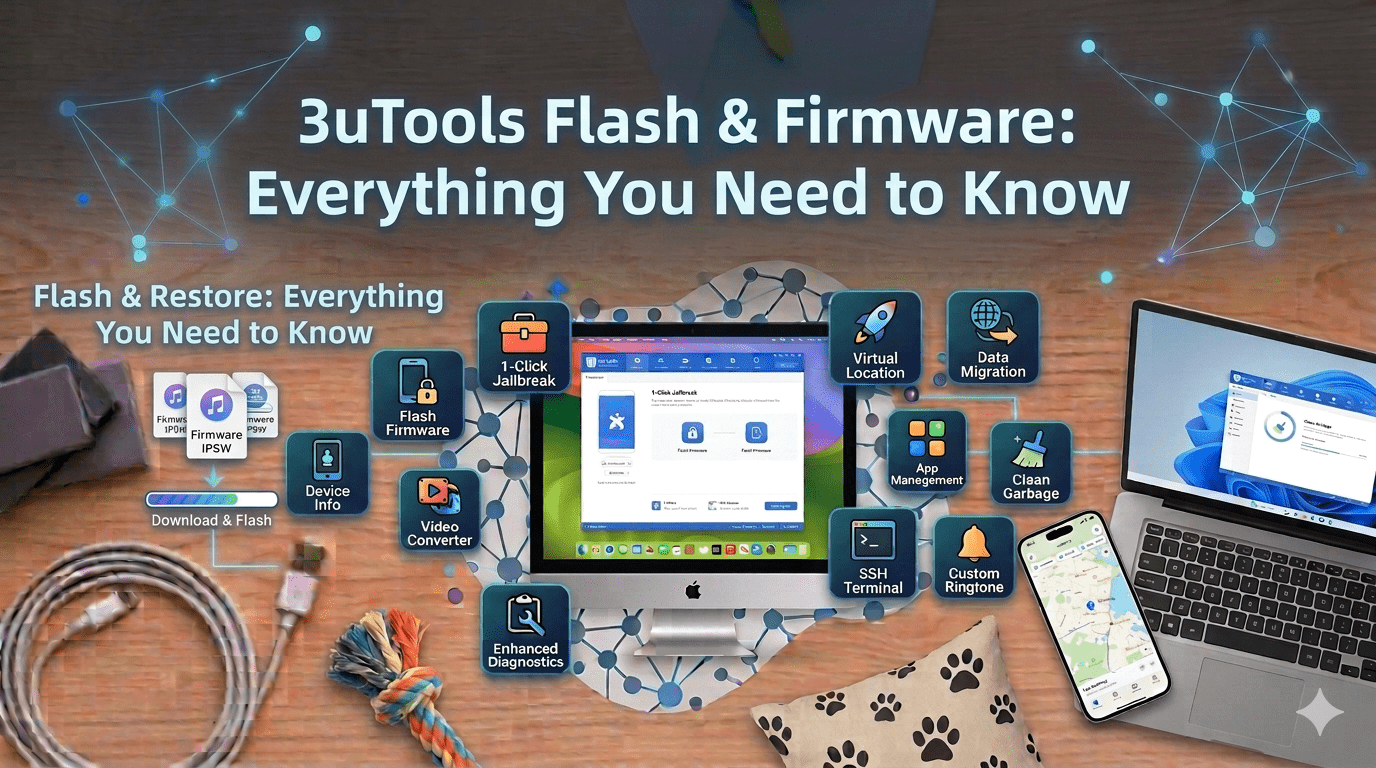
Your iPhone froze on the Apple logo. Again. You’ve tried restarting it five times and nothing works. Or maybe you’re dealing with constant app crashes that make your device nearly unusable.
Perhaps you just want to downgrade from iOS 18 back to iOS 17 because the new version runs poorly on your older iPhone.
These situations happen more often than you’d think. Apple’s support forums see thousands of posts every month from users dealing with stuck devices, software corruption, and iOS versions that don’t work well with their hardware.
The typical Apple Store solution is a factory reset through iTunes, which often fails with cryptic error codes that leave you more frustrated than when you started.
This is where 3uTools Flash becomes invaluable. Unlike iTunes, which offers limited options and frequently fails with unexplained errors, 3uTools Flash gives you four different flashing methods designed to handle every possible scenario.
Whether you need a quick fix, want to preserve your data, or need to flash multiple devices simultaneously, 3uTools has a solution that actually works.
Understanding 3uTools Flash Capabilities
Flashing sounds technical and intimidating, but 3uTools transforms it into something straightforward. The software can restore any iOS device to appropriate firmware that Apple still signs, and update all devices to the latest firmware version.
What makes 3uTools Flash special is how it handles the entire process automatically. The software detects your device model, identifies compatible firmware versions, downloads the necessary files at high speeds, and executes the flashing process without requiring you to manually locate specifications or follow complicated tutorials.
Speed matters when you’re dealing with a malfunctioning device. 3uTools downloads firmware files faster than iTunes, and the flashing process itself completes more quickly too.
Most users report noticeably shorter operation times compared to iTunes. The software currently supports iOS firmware versions from legacy devices all the way to the latest releases, making it valuable for users with a wide range of iPhone and iPad models.
Automatic firmware detection eliminates guesswork. You don’t need to research which iOS version works with your specific device model.
3uTools analyzes your connected iPhone or iPad, identifies compatible firmware options, and presents them in an easy-to-understand interface. You simply choose the version you want and let the software handle everything else.
Downgrade Possibilities and Limitations
Downgrading iOS sounds impossible because Apple typically prevents it, but 3uTools Flash makes it possible in specific situations. Understanding which devices support downgrading helps you make informed decisions about managing your iOS versions.
The iPhone 3GS can downgrade to iOS 4.1 without requiring SHSH file backups. If you have SHSH file backups for your iPhone 4, you can downgrade to any iOS version compatible with that device.
SHSH files are essentially digital signatures that verify your right to install specific iOS versions, and 3uTools works with these files to enable downgrades that would otherwise be impossible.
iPad users also have several options. The iPad 2, 3, 4, Air 1, Air 2, iPad 5, iPad 6, and iPad Mini 1, 2, 3, and 4 can all downgrade from iOS 9.2.1 to iOS 9.2 using 3uTools.
This specific downgrade path helps users who experienced problems after updating to the newer version.
Before attempting any downgrade, you must understand that the process erases all data on your device. Everything disappears including photos, messages, contacts, apps, and settings. Creating a complete backup before starting is absolutely essential. 3uTools offers comprehensive backup features so you can save your data before flashing and restore it afterward.
To check which firmware versions your specific device can flash, navigate to Flash Jailbreak > Pro Flash > Query SHSH in 3uTools. This tool analyzes your device and displays compatible options, eliminating guesswork and preventing mistakes that could cause serious problems.
The Four Flash Methods Explained
3uTools offers four distinct flashing approaches, each designed for different situations and user needs. Understanding these methods helps you choose the right tool for your specific problem.
Easy Flash: Three Modes for Common Scenarios
Easy Flash serves most users most of the time. It includes three operational modes that cover the typical flashing situations people encounter.
Quick Flash Mode performs a complete wipe and fresh iOS installation. Think of it as getting a factory-fresh device.
This mode works best when you are selling your iPhone, giving it to someone else, or dealing with severe software corruption that requires a complete reset.
The process typically takes 10 to 20 minutes depending on your device model and the iOS version being installed.
Retains User Data Mode updates or repairs iOS while keeping your personal information intact. Your photos stay safe, your messages remain accessible, your apps stick around, and your settings persist.
This mode is particularly valuable when you are experiencing software glitches but do not want the hassle of restoring everything from a backup afterward, especially if you do not have a recent backup available.
Anti Recovery Flash takes longer than other modes because it thoroughly formats every memory unit on your device’s storage chip.
This comprehensive approach permanently removes all traces of your data, making recovery impossible even with specialized software. Use this mode when privacy matters most, such as when selling your device or disposing of it responsibly.
iTunes Flash: Transparent Process with Better Error Handling
iTunes Flash displays the complete flashing process as it happens, showing you exactly what the software is doing at each step. This transparency helps when problems occur because you can see precisely where the process failed.
When errors happen, 3uTools can identify the problem based on error codes and suggest specific solutions. iTunes often fails with vague error messages that require extensive research to understand.
3uTools eliminates that frustration by providing clear explanations and actionable fixes. This mode is particularly useful for users who are comfortable with iTunes but want more control and better problem resolution.
Pro Flash: Advanced Features for Specific Needs
Pro Flash includes all three modes from Easy Flash plus an additional capability called Reserve Baseband While Flashing.
Baseband reservation matters for locked smartphones and devices with signal problems. When you enable this option, updating iOS will not affect your baseband version, which controls cellular connectivity.
This feature prevents signal loss and carrier issues that sometimes occur during normal flashing.
However, baseband reservation only works on iOS 7 and earlier versions, and only on specific devices including the iPhone 3G, iPhone 3GS, iPhone 4, the first-generation iPad, and iPod Touch.
Pro Flash also gives you access to the Query SHSH function, which checks firmware compatibility for your specific device. This makes Pro Flash the most comprehensive option for advanced users who need maximum control over the flashing process.
Multiple Flash: Efficiency for Multiple Devices
Multiple Flash solves a problem that businesses, repair shops, and users with multiple devices face constantly. Instead of flashing devices one at a time, you can process several iPhones or iPads simultaneously.
Connect multiple iOS devices to your computer via USB and 3uTools automatically detects each one. The software can flash different firmware versions to different devices at the same time, or apply the same firmware to multiple identical devices. Each USB port operates independently, so one device’s flashing status does not affect the others.
This feature supports two convenient options: Auto-activate after connection and Retain User’s Data While Flashing. The first option automatically activates devices after flashing completes.
The second option preserves user data across all devices being flashed, perfect for updating multiple iPhones without losing information. Repair technicians, IT professionals managing company devices, and families with multiple iPhones all benefit from this time-saving feature.
Technical Specifications and Compatibility
Understanding what 3uTools Flash supports helps ensure smooth operation. The software runs on Windows 7, 8, 10, and 11, as well as macOS systems. The current version is 3.25, updated as of May 25, 2025, with a file size of 185 MB.
Device compatibility is extensive. 3uTools Flash works with iPhone 3G, 3GS, 4, 4S, 5, 5C, 5S, 6, 6 Plus, 6S, 6S Plus, and all newer models through the latest releases. iPad support includes iPad 1, 2, 3, 4, iPad Mini 1, 2, 3, 4, iPad Air 1, 2, and all subsequent models. iPod Touch devices from generation 1 through 6 are also supported.
The software connects to your iOS device via USB cable or Wi-Fi. USB connections provide faster data transfer speeds and more reliable communication during the flashing process, so using a cable is recommended for all flashing operations.
Running 3uTools in administrator mode on Windows ensures it has all necessary permissions to communicate with your device and perform system-level operations. Right-click the 3uTools icon and select “Run as administrator” to enable this mode.
Safety Considerations and Data Protection
Flashing your iPhone or iPad carries inherent risks, primarily data loss. Understanding these risks helps you take appropriate precautions before starting any flashing operation.
Every flash mode except Retains User Data Mode completely erases your device. Photos, messages, contacts, apps, and settings all disappear. Creating a comprehensive backup before flashing is absolutely essential, and 3uTools offers robust backup features to help you do exactly that.
3uTools is a professional tool that has been used by millions of iOS users worldwide. When used carefully and correctly, it performs reliably without causing device damage. However, like any system-level operation, it should be used with proper preparation and caution.
Never disconnect your device while flashing is in progress. Do not close 3uTools until the process completes. Ensure your computer will not go to sleep or lose power during the operation. These interruptions can leave your device in an unusable state that requires additional recovery efforts.
Your iOS device should have at least 50% battery charge before beginning any flash operation. Devices that lose power during flashing often require complicated recovery procedures.
A stable and fast internet connection also matters, since 3uTools downloads iOS firmware files from Apple’s servers and these files can be several gigabytes in size.
Common Problems and Solutions
Even with 3uTools’ reliability, problems occasionally occur. Understanding common issues and their solutions helps you troubleshoot effectively.
3uTools Does Not Recognize Your Device
Try a different USB cable or USB port. Ensure your device is unlocked and you have tapped “Trust This Computer” when prompted. Restart both your iOS device and your computer. Update to the latest version of 3uTools, as older versions sometimes have compatibility issues with newer iOS versions.
Firmware Download Fails or Takes Too Long
Check your internet connection stability. Large iOS firmware files require reliable and fast connections. If downloads repeatedly fail, try downloading the firmware manually from Apple’s servers and importing it into 3uTools. The software supports manually selected firmware files for flashing.
Flashing Process Fails with an Error Code
3uTools displays specific error codes that correspond to particular problems. Common solutions include updating iTunes components on your computer, checking USB cable quality, ensuring sufficient free space on your computer’s hard drive, and temporarily disabling antivirus software that might interfere with the flashing process.
Device Stuck in Recovery Mode After Failed Flash
3uTools includes recovery mode exit tools. Navigate to the toolbox section and use the “Exit Recovery Mode” function. If this does not work, try flashing again with a different mode or firmware version. In more serious situations, 3uTools also supports DFU (Device Firmware Update) mode recovery.
Lost Data After Flashing Despite Using Retains User Data Mode
No flash mode guarantees 100% data preservation, which is why creating backups before flashing is so important. If you lose data, check whether 3uTools created an automatic backup before flashing. The software sometimes creates safety backups that you can restore from.
Step-by-Step Flashing Guide
Here is a straightforward walkthrough of the process using Easy Flash, since it covers most common scenarios.
Step 1: Backup Your Device
Open 3uTools and connect your iPhone or iPad via USB. Navigate to the backup section and create a complete backup of your device. Never skip this step, even if you plan to use Retains User Data Mode.
Step 2: Launch in Administrator Mode
Ensure your device remains connected via a reliable USB cable. Right-click the 3uTools icon and select “Run as administrator” to ensure the software has all necessary permissions.
Step 3: Navigate to the Flash Section
Click on the “Flash & JB” tab in 3uTools. You will see the four flash options: Easy Flash, iTunes Flash, Pro Flash, and Multiple Flash.
Step 4: Select Easy Flash and Choose a Mode
Click Easy Flash to access the three mode options. Choose Quick Flash Mode for a complete wipe and fresh iOS installation, Retains User Data Mode to preserve your personal information, or Anti Recovery Flash for thorough and permanent data deletion.
Step 5: Choose Your Firmware Version
3uTools automatically detects compatible firmware versions for your device. Select the iOS version you want to install. The software displays file sizes and estimated download times so you know what to expect.
Step 6: Begin Flashing
Click the Flash button to start. 3uTools downloads the selected firmware if not already cached and begins the flashing process. Progress bars show exactly where you are at each stage.
Step 7: Wait for Completion
Do not disconnect your device, do not close 3uTools, and do not let your computer sleep. The process typically takes 10 to 20 minutes. When complete, 3uTools displays a success message and your device restarts with the fresh iOS installation.
Step 8: Restore Your Backup
After flashing completes, use 3uTools to restore your backup. This brings back all your photos, messages, contacts, apps, and settings. The restoration process usually takes 5 to 15 minutes depending on backup size.
When to Use Each Flash Mode
Choosing the right flash mode depends on your specific situation.
Use Quick Flash Mode when your iPhone has severe software corruption, when you are preparing to sell or give away your device, when you want to start completely fresh, or when all other troubleshooting steps have failed.
Use Retains User Data Mode when you are experiencing minor software glitches, when you want to update iOS without restoring from a backup afterward, when you do not have a recent backup available, or when you need to refresh iOS while keeping all your personal information intact.
Use Anti Recovery Flash when selling your device and absolute privacy is required, when disposing of a device that contained sensitive information, when preparing a company iPhone for a new employee, or anytime permanent data deletion matters more than speed.
Use iTunes Flash when you need to see exactly what is happening during the flash process, when you are troubleshooting errors and need detailed information, or when you prefer transparency over a simplified interface.
Use Pro Flash when you need baseband preservation on supported devices, when you want access to SHSH query functions, or when you are an advanced user dealing with locked devices or unusual signal problems.
Use Multiple Flash when you need to flash several devices simultaneously, when you are a repair technician or IT professional, or when you are setting up multiple devices for family members or employees.
Additional Tools and Features
Beyond flashing, 3uTools offers several complementary features that enhance your iOS device management experience.
Device monitoring provides real-time information about battery health, CPU usage, memory consumption, and storage status. These insights help you maintain your device’s performance and catch potential problems before they become serious.
File management features let you transfer music, photos, videos, documents, and other files between your iOS device and computer without iTunes’ restrictions. Simple drag-and-drop operations replace iTunes’ confusing sync system.
App management allows you to install, update, back up, and manage apps on your device more conveniently than through iTunes alone.
Keeping 3uTools Updated
Regular updates ensure 3uTools remains compatible with the latest iOS versions and devices. The developers maintain an active development schedule, releasing updates whenever Apple introduces new iOS versions or hardware.
Check for updates by opening 3uTools and navigating to the settings menu. The software can check for updates automatically and notify you when new versions are available.
When Apple releases a new iOS version, waiting a few days before flashing gives the 3uTools team time to test the new firmware and release any necessary updates.
Conclusion
Flashing your iPhone or iPad does not need to be a scary or complicated process reserved for tech experts. 3uTools Flash transforms it into something accessible, reliable, and efficient.
Whether you are fixing a frozen device, downgrading to an older iOS version, or simply want a fresh start, 3uTools provides the tools you need.
With automatic firmware detection, high-speed downloads, clear error reporting, and comprehensive device support, 3uTools Flash represents a modern and practical way to manage iOS devices.
Download it today and discover why millions of users worldwide have made 3uTools their go-to iTunes replacement.
FAQs
1. What does Flash mean on 3uTools?
Flashing means installing a fresh copy of iOS on your device. 3uTools Flash can restore iOS devices to appropriate firmware versions, downgrade specific devices with SHSH support, and update all devices to the latest firmware.
2. Is 3uTools Flash safe?
3uTools Flash is a professional tool that, when used correctly and with proper preparation, performs reliably. Always back up your data before flashing, ensure your device has sufficient battery, and never interrupt the process once it has started.
3. What is Multiple Flash in 3uTools?
Multiple Flash lets you flash or activate several iOS devices simultaneously. It significantly improves efficiency for repair shops, IT professionals, and anyone who needs to process more than one iPhone or iPad at a time.
4. Can I use 3uTools on my iPhone?
No. 3uTools runs on Windows or Mac computers, not directly on iPhone. You must install 3uTools on your PC or Mac and connect your iOS device via USB or Wi-Fi to use the software’s features.
5. Will flashing delete all my data?
Most flash modes completely erase your device. Only Retains User Data Mode preserves your information, and even that mode does not guarantee 100% data preservation. Always create a complete backup before flashing.