Managing your iPhone from a computer should be straightforward, but for many users it isn’t.
iTunes can crash during restore operations, devices sometimes go unrecognized, and Apple’s management tools are spread across multiple apps, creating confusion for users who simply want to manage their devices efficiently.
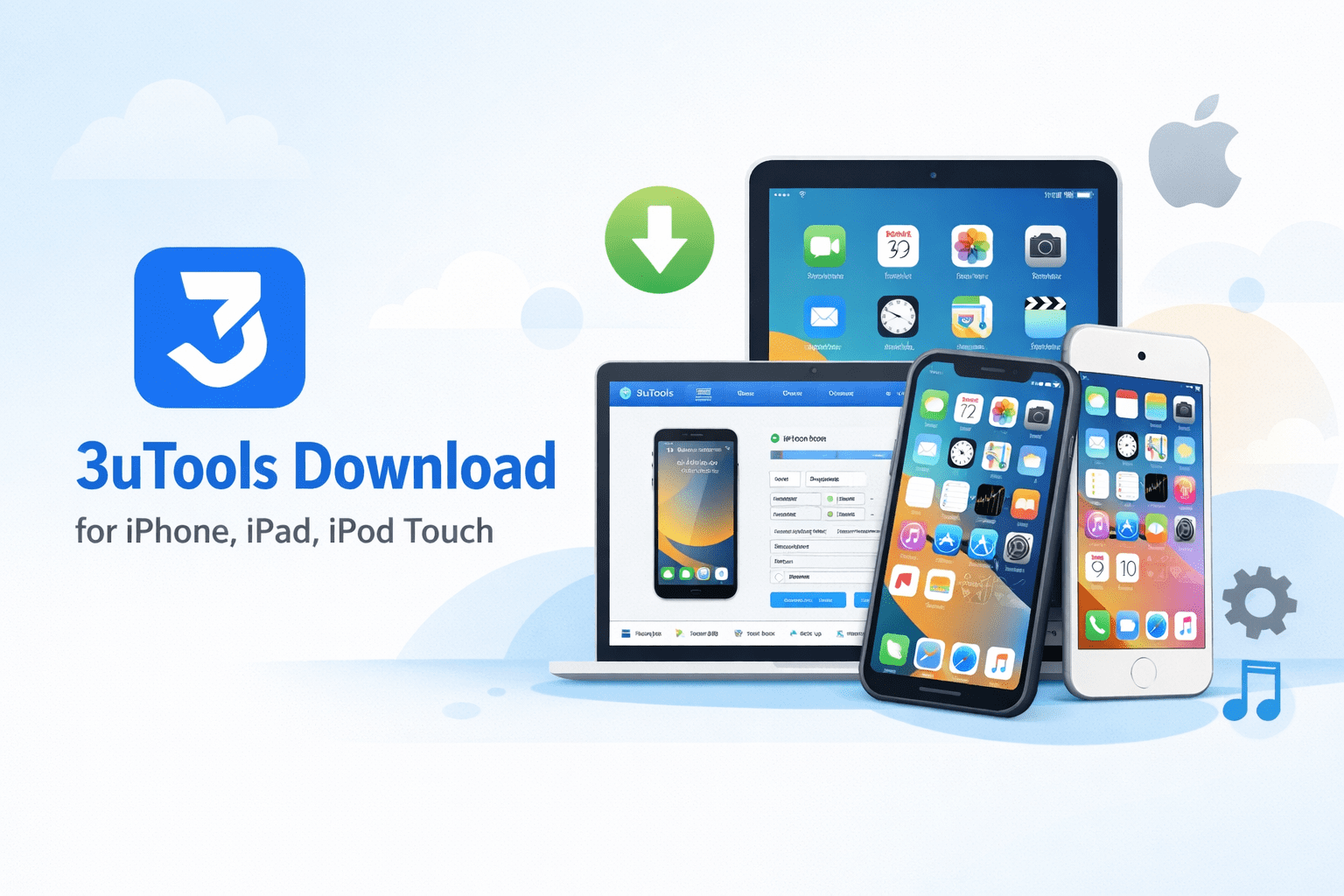
Many users choose to download 3uTools, a third-party iOS management tool that combines device management, backups, file transfers, firmware flashing, and troubleshooting features in a single interface.
Whether you’re installing it for the first time or looking for help with setup, this guide covers everything you need to know about downloading and installing 3uTools on Windows and Mac, connecting your device, and resolving common issues.
By the end of this guide, you’ll have 3uTools installed and ready to help you manage your iPhone, iPad, or iPod Touch more efficiently.
Table of Contents
How 3uTools Works?
3uTools is a desktop application for Windows and Mac that centralizes iOS device management into a single interface. Rather than switching between multiple Apple tools for different tasks, 3uTools handles backup and restore, media transfer, app management, firmware updates, and device diagnostics from one place.
One of its most useful features is the hardware diagnostics suite. From the main dashboard, you can check your iPhone’s battery health, verify whether components like the screen or camera are functioning correctly, inspect storage usage, and view detailed hardware information. This level of visibility is simply not available through Apple’s own tools.
3uTools is also effective at working with devices that are in a problematic state. If your iPhone is stuck in recovery mode, unresponsive, or failing to restore through iTunes, 3uTools can often diagnose and resolve the issue without data loss.
You can visit our complete guide on the 3uTools to see how it can make magic.
Complete Download and Installation Guide
3uTools isn’t just another iPhone management app, it’s a comprehensive toolkit that combines dozens of essential functions into one streamlined interface. Understanding the full scope of what 3uTools can do helps explain why it has become important for millions of technology users worldwide.
Windows
The Windows version of 3uTools (v3.26.007) is the most fully featured release and is available in two variants: a 187 MB 64-bit version and a 192 MB 32-bit version. Both work independently of iTunes, meaning you do not need iTunes installed for 3uTools to recognize and communicate with your device.
A common issue Windows users face is the “device not recognized” error. This usually happens because Windows has difficulty managing Apple’s proprietary USB drivers, particularly after system updates or when a third-party cable is used. 3uTools handles this by managing its own driver stack, and includes a built-in Repair Driver tool that resolves most connection problems automatically.
Installation steps:
Download 3uTools only from the official website. Third-party download sources frequently distribute modified versions that may contain unwanted software or have missing components. The installer is around 200 MB because it bundles everything needed for full device management, including drivers and diagnostic utilities.
During installation, select your preferred language and allow the installer to create desktop shortcuts. The process takes roughly 3 to 5 minutes on a modern system.
Once installed, connect your iPhone using a genuine Apple USB cable to a rear USB port. Front USB ports on desktop computers often deliver less consistent power, which can cause intermittent connection issues. If your device is not recognized immediately, use the Repair Driver button rather than reinstalling iTunes or restarting manually.
When your iPhone displays the “Trust This Computer” prompt, tap Trust and enter your passcode if asked. After this, 3uTools will have full access to your device and you can begin using backup, restore, media transfer, firmware update, and diagnostic features.
For detailed instructions, visit our detailed guide on 3uTools download on Windows
Mac Users
Apple’s transition away from iTunes on macOS created a gap that many users still feel. Tasks that were once manageable in one place now require navigating between Finder, Music, and the TV app, none of which offer the kind of file-level control that many users need.
The Mac version of 3uTools (v3.16.006, 178 MB) addresses several of these gaps. It is worth noting upfront that the Mac version has fewer advanced features than the Windows version, due to macOS security policies that restrict certain low-level device operations. For most everyday tasks, however, it works well.
Installation steps:
After downloading the installer, you will likely see a Gatekeeper warning stating the software is from an unidentified developer. To get past this, do not double-click the installer. Instead, right-click it and select Open, then confirm that you want to proceed.
Once the app is running, macOS will ask for permissions related to device access, USB connectivity, and file system access. Grant each of these when prompted.
If you see the “unidentified developer” error after installation: Go to System Settings, then Privacy and Security, scroll down, and click Open Anyway. Enter your Mac password when prompted. This resolves the block without weakening your overall security settings.
Despite the more involved setup, the Mac version of 3uTools is particularly useful for bulk photo and video management. Transferring large numbers of files, organizing them by date, and converting formats is significantly faster and more reliable than doing the same through Finder. The diagnostics features are also available on Mac, giving you battery health, storage breakdown, and hardware component status that Apple does not surface anywhere in macOS.
For detailed instructions, kindly visit our guide on the 3utools Mac download
Also,
We’ve created a comprehensive, separate guide specifically for Videoshop installation that walks through this process in detail.
3uRemote: Extending 3uTools to Mobile Devices
While 3uTools itself remains desktop-based, the developers have created 3uRemote as a companion application for Windows and Android devices.
This fills a specific niche for users who need remote desktop access and HD screen mirroring capabilities.
3uRemote offers secure remote desktop access with HD screen mirroring, allowing you to connect, control, and mirror screens with minimal latency.
The application uses advanced encryption for data protection and provides seamless multi-device compatibility.
This makes it particularly valuable for troubleshooting, remote work scenarios, or real-time monitoring of iOS devices from Android devices or secondary Windows computers.
The integration between 3uTools and 3uRemote creates a comprehensive ecosystem where you can manage iOS devices both locally and remotely, depending on your specific needs and setup.
We have a comprehensive guide on 3uRemote to make your experience easier.
Quick Connection Troubleshooting
If 3uTools is not recognizing your iPhone or iPad, work through these steps in order:
Use a genuine Apple USB cable and connect to a rear USB port rather than a front panel port. Front ports on desktop computers often cannot deliver consistent power for data connections.
Click the Repair Driver button inside 3uTools. This automatically scans for driver conflicts and fixes the most common recognition issues. In most cases, this resolves the problem without any further action needed.
If the problem persists, restart both your iPhone and your computer, then reconnect and try again.
For issues that appear only when certain 3uTools features are used rather than at the connection stage, check that your Wi-Fi connection is stable, as some functions rely on network access alongside the USB connection.
If none of the above steps work, the built-in tutorials accessible from the top menu bar in 3uTools provide detailed guidance for more specific device and system configurations.
Conclusion
3uTools is a practical solution for iPhone and iPad users who need more control over their devices than Apple’s default tools provide.
Whether the goal is managing large media libraries, running hardware diagnostics, updating firmware, or recovering a device that iTunes cannot recognize, 3uTools handles these tasks reliably and from a single interface.
It is not a replacement for every Apple tool, but for the situations where Apple’s tools fall short, 3uTools consistently fills the gap.
Frequently Asked Questions
1. Is 3uTools safe to use with my iPhone?
3uTools is legitimate software used by a large number of iOS device owners and technicians. Always download it from the official website to avoid unofficial versions that may have been modified. Before performing any major operation such as a firmware update or full restore, back up your device first as a precaution.
2. Will using 3uTools void my iPhone warranty?
Basic operations like media transfer, backup, and app management do not affect your warranty. Installing unofficial firmware modifications carries more risk in this regard. Review Apple’s warranty terms before performing any system-level changes if this is a concern.
3. Can 3uTools recover data from a completely unresponsive iPhone?
3uTools can often restore iPhones that are stuck in recovery mode, caught in a boot loop, or unresponsive due to software issues. It can recognize and repair devices that iTunes fails to detect. However, it cannot address hardware damage such as a failed logic board, water damage, or a broken charging port. Its recovery capabilities apply to software-related failures only.
4. What is the difference between the Windows and Mac versions?
The Windows version (v3.26.007) includes a broader set of features than the Mac version (v3.16.006). This is primarily because macOS security policies limit certain low-level device operations. Windows users have access to more advanced firmware tools and a wider range of device repair functions. Mac users still get solid media management, diagnostics, and standard firmware update capabilities.
5. Will 3uTools keep working after iOS updates?
The development team releases compatibility updates regularly and typically supports new iOS versions within a few weeks of release. There may be a short window after a major iOS update where some advanced features are temporarily unavailable, but core functions like media transfer and diagnostics generally remain unaffected. 3uTools also includes an option to pause automatic iOS updates on your device if you prefer to wait for confirmed compatibility.
6. Does 3uTools require iTunes to be installed?
On Windows, 3uTools manages its own drivers and does not require iTunes to be installed. On Mac, granting the necessary permissions during setup is sufficient for standard device management functions.