
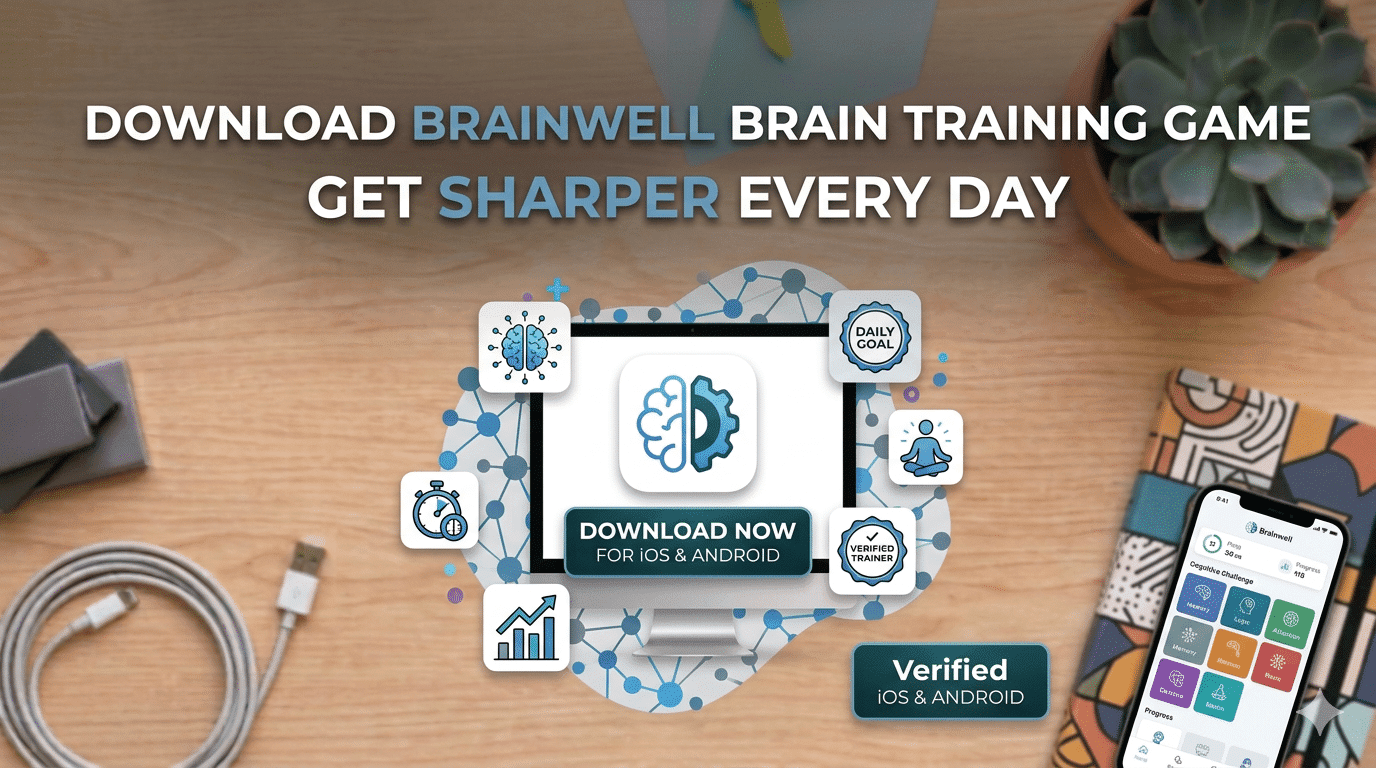
Keeping the mind sharp is something most people think about but few make a consistent habit of. Brainwell is a brain training app designed for iPhone, iPad, and iPod Touch that offers structured cognitive exercises across memory, attention, reasoning, and problem-solving. This guide covers what the app offers, how to install it through 3uTools, and how to get the most out of the experience.
Why Cognitive Training Matters
Modern life places significant demands on attention and memory. Multitasking, information overload, and screen-heavy routines can make it harder to focus and retain information over time. Regular mental exercise, much like physical exercise, helps maintain and improve these functions.
Brainwell approaches this through neuroscience-based games developed by a team of cognitive psychologists, neuroscientists, and game designers. The exercises are designed to target specific cognitive functions rather than providing general mental stimulation, which makes training more focused and measurable over time.
What Brainwell Offers
Exercise Library
The app includes over 50 exercises across several cognitive categories. Memory games challenge both short-term recall and longer-term retention. Attention exercises build concentration and reduce susceptibility to distraction. Logic and reasoning challenges develop analytical thinking and structured problem-solving. Verbal and visual exercises strengthen language comprehension and spatial reasoning.
The variety across categories means that different types of cognitive function are trained in each session, rather than repeatedly practicing the same type of task.
Daily Challenges and Fresh Content
Brainwell updates its daily challenges regularly, providing new exercises each day. This prevents routines from becoming repetitive and ensures the brain continues to encounter novel challenges, which is important for effective cognitive training.
Brain Factor Score and Progress Tracking
After each session, Brainwell generates a Brain Factor score that summarizes performance across the exercises completed. Over time, this score provides a clear picture of which areas are improving and which need more attention. The tracking system makes it easier to direct practice toward specific weaknesses rather than training unfocused.
Social Features
Users can compare scores with friends or the broader Brainwell community. The competitive element adds motivation for users who find social accountability helpful for maintaining a consistent training habit.
Subscription Options
Brainwell provides free access to three games per day. A subscription unlocks the full library of 50+ games, detailed analytics, and personalized training recommendations.
A monthly subscription provides unlimited access with automatic renewal. An annual subscription offers better value for users committed to long-term training. Both are managed through your iTunes account and can be modified or cancelled at any time, though unused portions of a billing period are not refundable.
Installing Brainwell Through 3uTools
3uTools is a desktop application for Windows and Mac that provides PC-based iOS device management. For users who prefer managing app installations from a computer, it offers an alternative to direct App Store downloads along with backup and storage management tools.
System requirements before you begin:
- iPhone, iPad, or iPod Touch running iOS 9.0 or later
- Windows PC running Windows 7, 8, 10, or 11, with at least 2 GB of RAM (4 GB recommended)
- 200 MB of free storage for 3uTools installation
- A genuine Apple USB cable
- Stable internet connection
Installation steps:
- Download 3uTools from the official website and run the installer. Select an installation folder with sufficient space and follow the on-screen steps. Launch 3uTools once installation is complete
- Connect your iPhone or iPad to your computer using a USB cable. Unlock your device and tap Trust This Computer when prompted. 3uTools will detect the device and display model information, iOS version, storage, and battery level
- Navigate to the Apps or Games section in 3uTools and search for Brainwell Brain Training Game
- Select the app from the results and click Install. 3uTools will download the app and transfer it to your connected device
- Once installation is complete, the Brainwell icon will appear on your home screen
Before you start using the app, create a backup of your device through 3uTools. This takes a few minutes and ensures your data is protected before adding new apps or making changes to your setup.
Troubleshooting tip: If your device is not recognized in step 2, try a different USB port, preferably a rear port on a desktop computer. Front ports sometimes deliver less consistent power for data connections. If the issue persists, click the Repair Driver button in 3uTools to automatically diagnose and resolve driver conflicts.
Getting Started with Brainwell
When you first open the app, set up your profile with your age, primary goals, and areas you want to focus on. Brainwell uses this to calibrate initial difficulty levels and recommend relevant exercises.
The app will prompt you to grant permissions for notifications, which are useful for maintaining a daily training schedule. Enable these if you find reminders helpful for building a consistent habit.
Begin with a full session covering multiple exercise types to get your baseline Brain Factor score. This initial score gives you a starting reference point and helps identify which cognitive areas to prioritize in early sessions.
Tips for Effective Brain Training
Consistency matters more than session length. Ten to twenty minutes of daily training produces better results than occasional longer sessions. Building Brainwell into an existing routine, such as morning coffee or a lunch break, makes it easier to maintain.
Track your Brain Factor score over time and pay attention to which categories improve most readily and which remain flat. Allocating more practice time to weaker areas while maintaining stronger ones is a more effective approach than treating all exercises equally.
Engage with the social features if motivation is a challenge. Friendly competition with people at a similar level can provide the accountability that makes daily practice easier to sustain.
Use 3uTools to check for app updates periodically. Updates to Brainwell often include new exercises, performance improvements, and fixes that keep the experience running smoothly.
Conclusion
Brainwell provides a structured, science-backed approach to cognitive training that goes beyond generic puzzle apps. Its combination of diverse exercise types, daily content updates, progress tracking, and social features makes it a practical tool for anyone who wants to maintain or improve mental sharpness over time.
Installing it through 3uTools gives users a PC-based management option with easy backup and straightforward installation. Whether you use the free version for daily quick sessions or subscribe for full access to the complete exercise library, the app is worth adding to a regular routine.
Frequently Asked Questions
Is Brainwell free to use?
Brainwell offers free access to three games per day. A subscription unlocks the full library of over 50 games, detailed performance analytics, and personalized training recommendations.
Do brain training apps actually improve cognitive function?
Research on brain training shows that consistent practice with targeted exercises can improve performance in the specific skills being trained, such as working memory, attention, and processing speed. Brainwell’s exercises are developed based on cognitive science research and are designed to target these functions directly.
Can I use Brainwell offline?
Many exercises can be played offline once the app is installed. Some features such as score syncing and accessing new daily content require an internet connection.
Is Brainwell safe to install?
Yes. Brainwell is a legitimate app with no reported security issues. Installing it through 3uTools follows a standard process that does not modify your device’s operating system.
Why use 3uTools for installation instead of the App Store directly?
3uTools provides a PC-based installation and management option that some users prefer for maintaining backups, managing storage, and handling app installations from a computer rather than directly on the device. Both methods install the same app.
Does 3uTools require iTunes to be installed?
On Windows, 3uTools manages its own drivers independently and does not require iTunes for most functions. Granting the necessary permissions during setup is sufficient for standard device management on Mac.