
If you own a Mac and an iPhone, you’ve probably discovered that managing your device isn’t always as seamless as Apple’s marketing suggests. While macOS offers Finder and the older iTunes for basic syncing and updates, things get tricky the moment you want to step outside Apple’s guarded ecosystem. Tasks like flashing firmware, jailbreaking, creating custom ringtones, downloading unique wallpapers, or managing files in a more flexible way quickly turn into a frustrating maze of limitations.
This is where 3uTools steps in, a powerful, all-in-one solution that brings freedom, customization, and control back into your hands. In this guide of 3uTools Download for Mac, we’ll explore how 3uTools can transform your Mac into the ultimate iOS management hub.
Table of Contents
Problem Behind This Mess

You know what, For years, there was simply no proper native tool that could handle all of these needs in one place for Mac users. The popular iOS management software 3uTools existed, but it was only available for Windows.
This created a gap in the experience for millions of Mac users. People resorted to clunky workarounds such as installing Windows via Boot Camp or running it through virtualization software like Parallels Desktop or VMware. These methods were not only time-consuming but also consumed large chunks of storage and processing power.
On top of that, many Mac users reported on forums like Apple Support that even when they managed to get 3uTools working through these methods, compatibility problems with new iOS updates often broke the software. One user wrote that “3uTools Application on computer doesn’t work with the new version of the iOS version,” a sentiment echoed by dozens of others who clicked “me too” on the post.
The release of the official 3uTools for Mac in April 2024 changed this completely. According to a detailed review published by SoftwareVS, the official macOS version of 3uTools was released on April 9, 2024. This launch marked a major turning point for Mac users, as it brought many features previously limited to the Windows version over to macOS
Finally, macOS users had a native version of the tool that brought over most of the powerful features from Windows. Now, 3uTools for Mac has become an all-in-one solution for iOS management, offering everything from flashing tools and jailbreaking support to file transfers, backups, and customization features — all without having to leave macOS.
Why Mac Users Needed 3uTools?
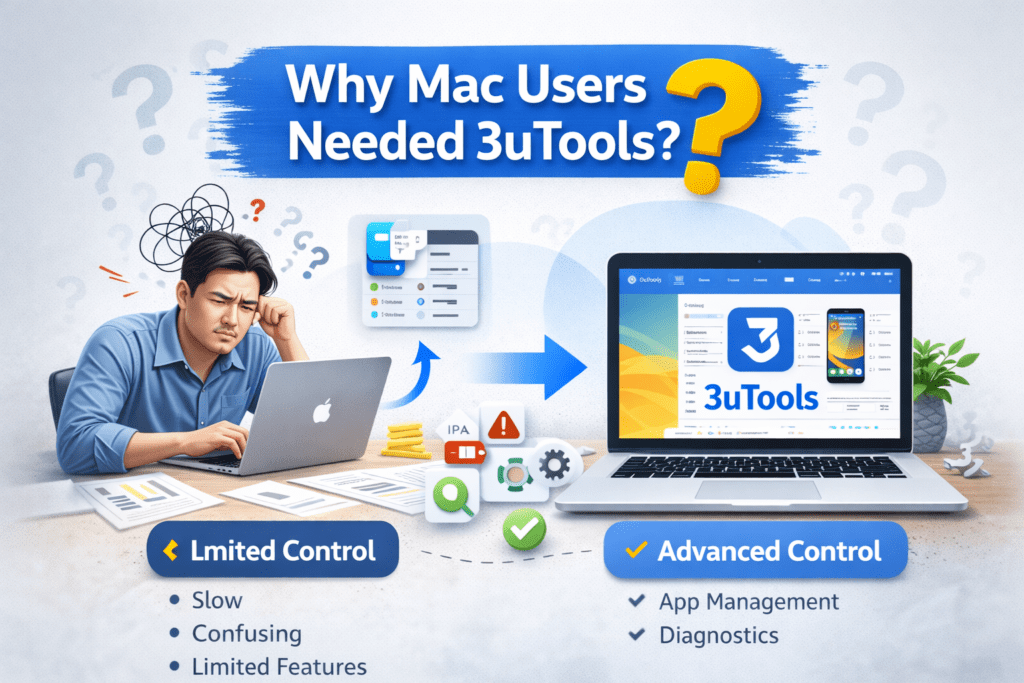
To understand why this release matters so much, you need to know what Mac users were missing before. iTunes and Finder can only do so much. If you wanted to downgrade your iOS version to an older firmware that Apple no longer signed, you were out of luck. If you wanted to jailbreak your device to install apps not available in the App Store, you had to use separate tools, many of which only ran on Windows or required complex terminal commands on macOS.
File management was also frustrating. iTunes syncs were slow, and they only allowed certain file types. You could not simply drag and drop files freely between your Mac and iPhone. For media enthusiasts, creating custom ringtones or wallpapers was a tedious process involving multiple steps and third-party converters.
Considering that according to Statista, over 29 million Macs were sold globally in 2024, and the vast majority of these users also own iPhones, the lack of a dedicated Mac version of 3uTools meant that millions of people were stuck with limited options. Many turned to Windows PCs just to perform certain iOS management tasks.
3uTools for Mac has solved these problems in a single application. With it, you can flash firmware, jailbreak, back up your data, manage apps, create ringtones, download wallpapers, check your device’s health, and much more, all without leaving your Mac environment.
The Latest Version and Requirements
The current Mac version is 3uTools v3.16.006, updated on June 17, 2025. The file size is about 178 MB, making it lightweight compared to some other iOS management tools. It runs on macOS 12 or later, which covers most recent Mac models including MacBook Air, MacBook Pro, and iMac. Both Intel and Apple Silicon (M1/M2) processors are supported. You’ll need at least 4 GB of RAM to run it comfortably, though 8 GB or more is recommended if you plan to use it alongside other heavy applications. An active internet connection is essential, especially for downloading firmware or large wallpaper collections.
The latest version of 3uTools (v3.28 as of early September 2025) lists compatibility with the current generation (iPhone 16/15 etc.) and iOS versions up to iOS 18.
Get a complete, comprehensive guide on 3utools to fully understand the features.
How to Download and Install 3uTools on Mac?
Getting 3uTools up and running on your Mac is quick and painless if you follow the right steps. Always download the app from the official 3uTools website or a well-known, trusted mirror. This ensures you get the authentic software without the risk of malware or tampered files.
If macOS warns you that the app is from an unidentified developer, don’t panic. This is just Apple’s Gatekeeper doing its job. To proceed, go to System Settings (or System Preferences on older macOS versions), open Security & Privacy, and under the General tab, click Open Anyway next to 3uTools.
After launching the app, connect your iPhone or iPad to your Mac using a USB cable. If your iOS device asks, tap Trust This Computer. Within seconds, 3uTools will recognize your device and show you everything from its battery health to storage details. From here, you can start exploring its powerful features, whether you want to flash firmware, back up and restore data, move media files, or customize your device with ringtones and wallpapers.
How 3uTools Solves Common Mac-Specific Problems?
Before the Mac version existed, many users complained about the lack of a one-click jailbreak tool for macOS. 3uTools solves this by integrating jailbreak options directly into its interface. If your device is supported, you can initiate the jailbreak process without hunting for third-party scripts or connecting to a Windows machine.
Another common frustration was iTunes’ restrictive syncing. With 3uTools, you can freely move files between your Mac and your device without converting formats or erasing existing data. The ability to create and install custom ringtones directly from the app also bypasses Apple’s cumbersome process.
Firmware flashing is another area where 3uTools shines. Apple’s own tools don’t let you downgrade to unsigned firmware. 3uTools can handle downgrades for versions that are still being signed, and its built-in library saves you the trouble of manually searching for IPSW files.
Using 3uTools on Mac
Once your iPhone or iPad is connected, 3uTools for Mac opens to a clean, organized dashboard where every major feature is only a click away. Right at the top, you’ll see a full breakdown of your device’s status — from battery cycle count and jailbreak state to storage distribution and iCloud lock status. This instant overview is far more comprehensive than what Apple’s own Finder offers.
If you need to safeguard your data, the Backup/Restore panel makes it easy to create full or selective backups directly on your Mac, then restore them when needed. For more advanced operations, the Flash & Jailbreak section lets you update, downgrade, or completely reinstall iOS firmware, as well as jailbreak supported devices. These processes are streamlined but still give you full control over the details, which is especially useful for power users.
The Toolbox is where 3uTools really shines. Here you’ll find utilities like Virtual Location for spoofing GPS coordinates, Real-Time Screen Viewing for mirroring your iOS screen to your Mac, image compression to free up storage, icon layout management, Face ID testing, and more. Many of these tools address small but frustrating limitations of Apple’s native ecosystem.
For personalization, the Ringtones and Wallpapers sections are a goldmine. You can browse thousands of free downloads organized by popularity, or craft your own ringtones from any audio or video file on your Mac. Applying them is instant, letting you refresh your device’s look and feel in seconds.
In short, using 3uTools on Mac feels like having a Swiss Army knife for iOS management — powerful, versatile, and surprisingly intuitive once you explore its features.
Staying Safe While Using 3uTools
Like any powerful device management tool, 3uTools should be used carefully. Always back up your data before flashing firmware or jailbreaking, as these actions can result in data loss if something goes wrong. Make sure you download the software only from trusted sources, and keep both 3uTools and your macOS system updated to maintain compatibility and security. If you’re concerned about privacy, review the app’s permissions and consider running a reputable antivirus scan periodically.
Conclusion
Downloading 3uTools for Mac has filled a long-standing gap for macOS users who want more control over their iOS devices. It combines the best features of the Windows version with the convenience of running natively on Mac. Whether you need to flash firmware, jailbreak your iPhone, manage your files, or simply customize your device’s look and feel, 3uTools offers a simple and effective solution.
If you’ve struggled with Apple’s limited tools in the past, downloading 3uTools for Mac could be the upgrade you’ve been waiting for. With its wide range of functions, frequent updates, and user-friendly interface, it is quickly becoming the go-to choice for iOS power users on macOS.
Frequently Asked Questions
1. What is 3uTools and why is it important for Mac users?
3uTools is a powerful all-in-one management tool for iOS devices, allowing you to flash firmware, back up data, manage files, download apps, and even jailbreak your iPhone or iPad. While Windows users have enjoyed it for years, Mac users often struggle to find an equally comprehensive solution that works seamlessly with Apple’s ecosystem. This is where 3uTools for Mac becomes a game changer, it provides advanced features that macOS alone does not offer, giving users more freedom and control over their iOS devices.
2. Can I install 3uTools directly on macOS?
By default, 3uTools is designed for Windows, but Mac users can still run it through compatible methods such as virtual machines, Boot Camp, or third-party tools that allow Windows applications to operate on macOS. Once set up, you can access the full suite of 3uTools features right from your Mac, making it easier to manage your iPhone or iPad without switching to a Windows PC.
3. Is 3uTools safe to use on a Mac?
Yes, 3uTools is considered safe as long as you download it from its official source or a trusted platform. Many Mac users rely on it for everyday iOS management without facing security issues. However, because it offers advanced functions like jailbreaking and firmware flashing, you should proceed with caution and ensure you understand the process before making system-level changes to your device.
4. What can I do with 3uTools on a Mac that I can’t do with Finder or iTunes?
While Finder and iTunes focus mainly on syncing, backups, and updates, 3uTools goes far beyond. On a Mac, you can use it to create custom ringtones, manage your iPhone’s photo and video library, download wallpapers and themes, install apps outside the App Store, analyze battery health, and even perform advanced operations like jailbreaking. This makes it a more flexible and complete solution for power users.
5. Does 3uTools work with the latest macOS and iPhone models?
Yes, when run through a compatible method, 3uTools works with the latest versions of macOS and supports new iPhone models, including the iPhone 15 series. The tool is regularly updated to stay compatible with Apple’s new firmware releases, so you can manage, back up, and customize even the newest devices without hassle.